
Can AI Create Print-Ready Board Printing Artwork?
A practical checklist for turning AI-generated designs into files that actually print the way you expect, resolution, colour, format and layout, explained simply.

The reason is straightforward — screens and print are two different mediums. This checklist walks you through exactly what “print-ready” means for printed boards, the most common problems we see, and how to fix them before your order goes to press.
Our advice: in every case, we strongly recommend using a professional graphic designer to create your artwork to guarantee the best possible print quality.
The Quick Answer
Yes
AI can create amazing graphics.
No
They are not automatically print-ready.
To be print-ready, your file needs to meet a few technical requirements:
- High resolution (typically 300 DPI)
- Correct colour mode (CMYK)
- Proper file format (PDF preferred)
- Exact dimensions for your print size, or scaled to the correct ratio (e.g. 50% of full size)
- Clean, sharp details with no errors
- 3mm bleed and crop marks
Most AI tools don’t output these settings by default, because they’re built for screens — not print.
What “Print-Ready” Actually Means
1. Resolution (DPI)
300 DPI
→
72 DPI
Print standard: 300 DPI
Typical AI output: 72–150 DPI
Low resolution means blurry prints. A large printed boards job, for example, might need 12,000+ pixels of width, yet many AI images are generated far smaller than that.
2. Colour Mode (RGB vs CMYK)
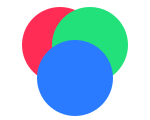
RGB (screen)
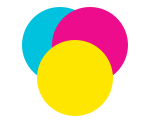
CMYK (print)
Screens use RGB. Professional printers use CMYK. When your design converts from one to the other:
Bright colours can look duller
Blues may shift
Skin tones may change
Neon colours lose their vibrancy
Tip: always preview your design in CMYK before printing so there are no surprises.
3. File Types
AI tools usually export JPG or PNG. For printing, better formats are:
PDF (preferred)
Vector files — AI, SVG, EPS (ideal for logos)

VECTOR
RASTER
Why it matters: JPGs can lose quality through compression, and AI does not create true vector files. Vector artwork scales to any size without losing quality; raster (pixel) artwork blurs when enlarged.
4. Size & Layout

1024 × 1024
→

AI often creates square images (e.g. 1024×1024). Print designs, however, need specific shapes — wide printed boards, portrait posters, set flyer sizes, and so on. Cropping or stretching a square image to fit usually ruins the layout.
Common Problems With AI Print Designs
Blurry or pixelated images
Caused by low resolution. Fix: start with higher-res images or upscale correctly.
Strange details (artifacts)
Warped shapes, broken text, odd textures, caused by AI generation errors.
Colour changes
Looks great on screen, dull in print, caused by the RGB → CMYK conversion.
Gradient banding
Visible steps instead of smooth colour fades.
Poor composition
Important elements get cut off when the image is resized.
How to Fix AI Designs for Printing
Follow this simple workflow:
Generate at the highest resolution possible — minimum 300 DPI at the size you need.
Zoom in (150%) and inspect the details carefully.
Upscale the image if needed using professional tools such as Gigapixel AI, Adobe Firefly or Topaz Labs.*
Clean up any errors manually.
Convert colours to CMYK.
Set exact print dimensions.
Export as PDF (preferred).
*Please note: we have no affiliation with the tools listed above and accept no liability should you choose to use or pay for these services.
When AI Works Well (and When It Doesn’t)
For printed boards, AI works best on backgrounds, illustrations and large graphics. Logos, fine text and brand-critical detail should always be added or replaced manually.
- Great for
- Backgrounds and textures
- Creative illustrations
- Large printed boards viewed from a distance
- Hybrid designs (AI background + real text/logos)
- Not ideal for
- Logos and branding
- Text-heavy designs
- Product photography
- Faces or detailed human images
- High-precision designs
If it needs to be perfect, don’t rely on AI alone. AI-generated text often contains errors or distortions, so always replace it manually.
AI Prompts to Help
Below are high-quality, ready-to-use prompts to help AI generate print-friendly artwork from the start. They’re designed to reduce common issues like low resolution, poor composition and colour problems. Edit each one to suit the item you’d like to print.
Specifications:
- Size: [exact dimensions, e.g., 200cm x 100cm]
- Orientation: [landscape/portrait]
- Ultra-high resolution suitable for 300 DPI printing
- Leave safe margins (no important elements near edges)
- Clean, sharp, professional
- Realistic and balanced, suitable for CMYK printing (avoid neon/over-saturated colours)
- Background: extend fully to edges (with bleed and crop marks)
Design details:
[describe subject, branding, message clearly]
Avoid:
blurry details, distorted text, artifacts or visual errors
Specifications:
- Final size: [e.g., 3m x 1m]
- Designed for long-distance viewing (clear, bold visuals)
- Ultra-high resolution, suitable for scaling
- Wide composition (not square)
- Strong focal point and minimal clutter
Include: large readable headline "[your text]", simple background or gradient, strong contrast for visibility
Avoid: small text, overly complex details, low-resolution textures
Specifications:
- Size: A1 / A2 / custom
- Print-ready composition with proper spacing
- High detail, sharp edges, 300 DPI quality
- Balanced layout (top, middle, bottom sections)
- CMYK colour
Include: heading, supporting visuals, space for text overlay (leave clear areas)
Style: [premium / modern / minimal / bold]
Avoid: pixelation, crowded layout, text baked into image (leave editable space)
Specifications:
- Size: A4 / A5
- Portrait layout
- High resolution for print
- CMYK colour
- Clear sections for text placement
- Include 3mm bleed margin and crop marks
Design requirements: visual hierarchy (header, body, footer), soft colour palette suitable for printing, space for adding text later in design software
Avoid: dense or cluttered backgrounds, overuse of gradients
Need Help?
It can save you time, money and the cost of reprints.